Touch and virtual controls
The touchscreen as the DualSense touchpad
- Playing with a controller: the whole picture is the touchpad. Touches in the black bars land on its nearest edge.
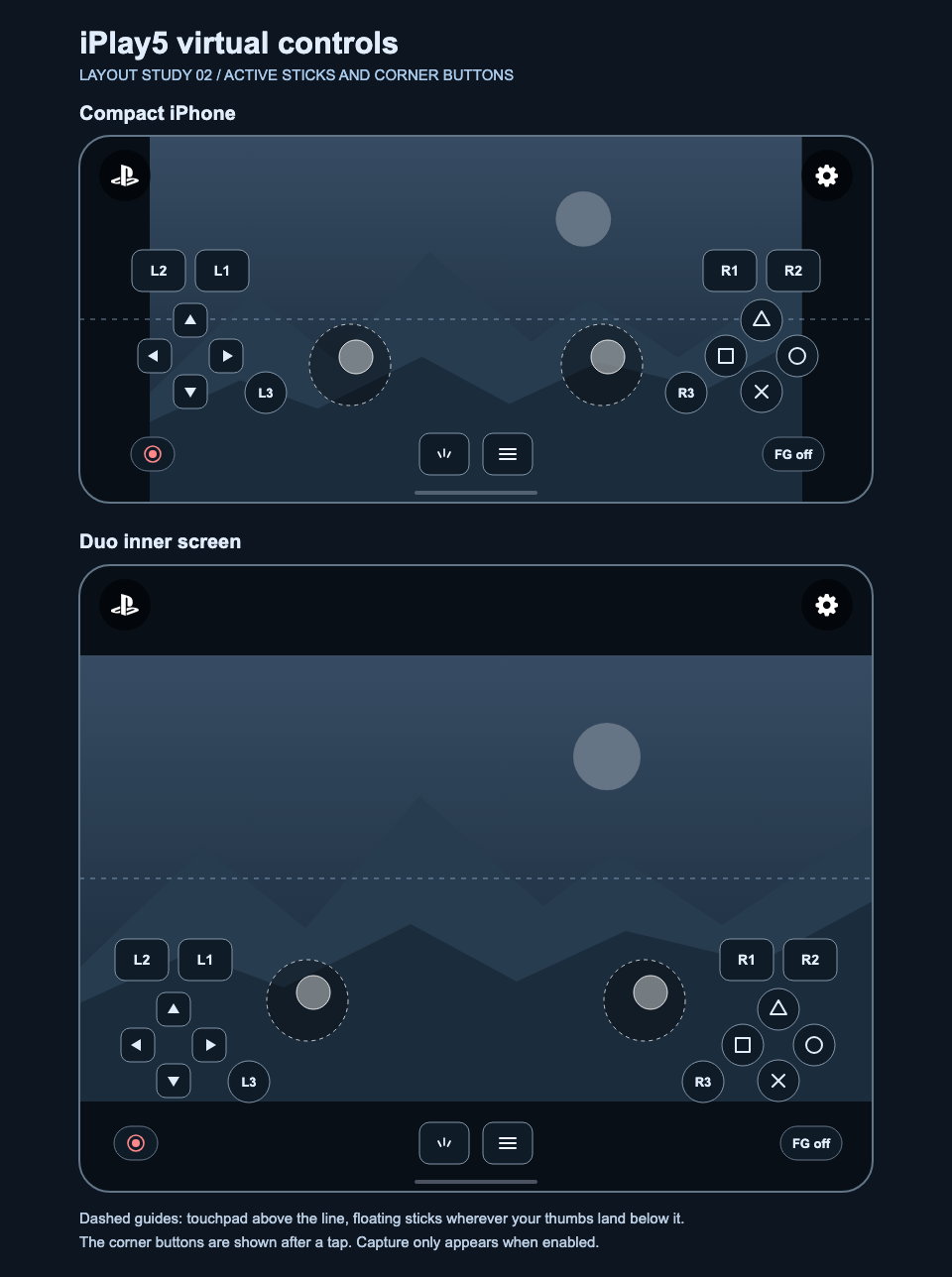
- With virtual controls showing: the upper half is the touchpad, and the lower half is for the sticks.
- Drag to move a finger (up to two at once). A quick tap clicks the touchpad.
- Select button is touchpad click (Settings › Controller) gives you a touchpad click on the controller too.
Virtual controls
Play without a controller. Sticks float: touch open space on either side of the lower half and a stick starts under your thumb. The D-pad, face buttons, shoulders and triggers sit at the sides, with L3 and R3 diagonally inward from the D-pad and face buttons. Create and Options sit in the black bar below the picture if there’s room, otherwise at the bottom centre.
Settings › Virtual controls:
| Setting | Options | Default |
|---|---|---|
| Show | Auto (only when no supported controller is connected), Always show, Never show | Auto |
| Size | Small, Medium, Large | Medium |
| Opacity | 20% to 100% | 100% |
| Fixed sticks | Each stick stays in one spot on its side, and a touch near it moves it straight away | Off |
- Starting a stream with no controller asks whether to Use virtual controls, Connect without controls or Cancel. That choice only lasts for the session. The stream menu shows it and offers Use saved virtual controls setting.
- With virtual controls, rumble and haptics play on the phone. See Controllers › Vibration.
- Phone gyro for motion controls gives games motion from the phone.
Controls Guide
Settings › Controller › Controls Guide, also in the stream menu. A diagram of the layout on a compact iPhone and on the iPhone Duo’s inner screen, and a summary of the stream shortcuts. The dashed line marks the upper-screen touchpad, and dashed circles show example stick positions, not fixed touch targets.